Pages and the block editor

The CMS is how a group gets a website rather than just an event list. Pages are built from content blocks you add and reorder, and every page exists once per active language.

Where pages live

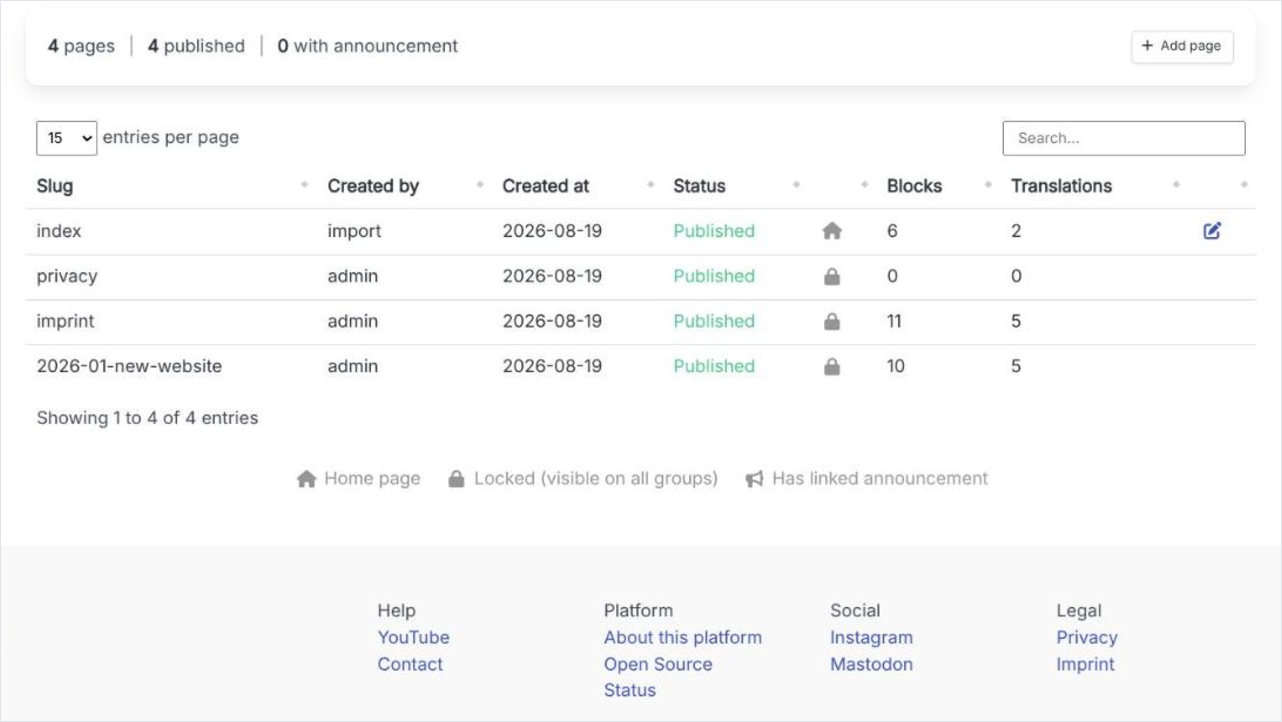
Pages under Content lists everything the group has, with its slug, status, block count and how many translations exist. The plus in the last column header adds a page. A new group starts with one page already there - a Home page that explains the CMS in its own text and is meant to be replaced.

The Pages list in the group admin, with one row per page showing slug, status, block count and translation count.
The Pages list. The translations column is the quickest check for a half-translated site.

Creating a page

  1. 1

    Press the plus

    Add new cms page asks only for the URL slug. Some slugs are reserved by the platform and are refused with a message.

  2. 2

    Set the page title and menu name

    Page Title is what the browser and the page itself show. Menu Link Name is what appears in a menu, and can be left empty for a page that is not in one.

  3. 3

    Add the blocks

    Choose a block type and it is appended to the page. Blocks can be moved left and right; the editor asks you to save before some operations.

  4. 4

    Publish

    A page starts as a draft. Switch the status to published when it is ready, and pick the menu locations it should appear in.

The page settings

Page Title
The title shown in the browser tab and in the page content itself.
Menu Link Name
The shorter label used in menus. Not needed for a page that never appears in one, such as the index.
Menu Locations
Where the page is linked: Top Menu, or Footer 1 through Footer 4. A menu entry also carries a visibility - Visitors, Members, Manager or Admins - so a page can be linked only for people who are signed in.
Status
Draft, Published, or Locked. Locked pages are visible everywhere, which is how platform-wide pages such as the imprint and the privacy policy work.
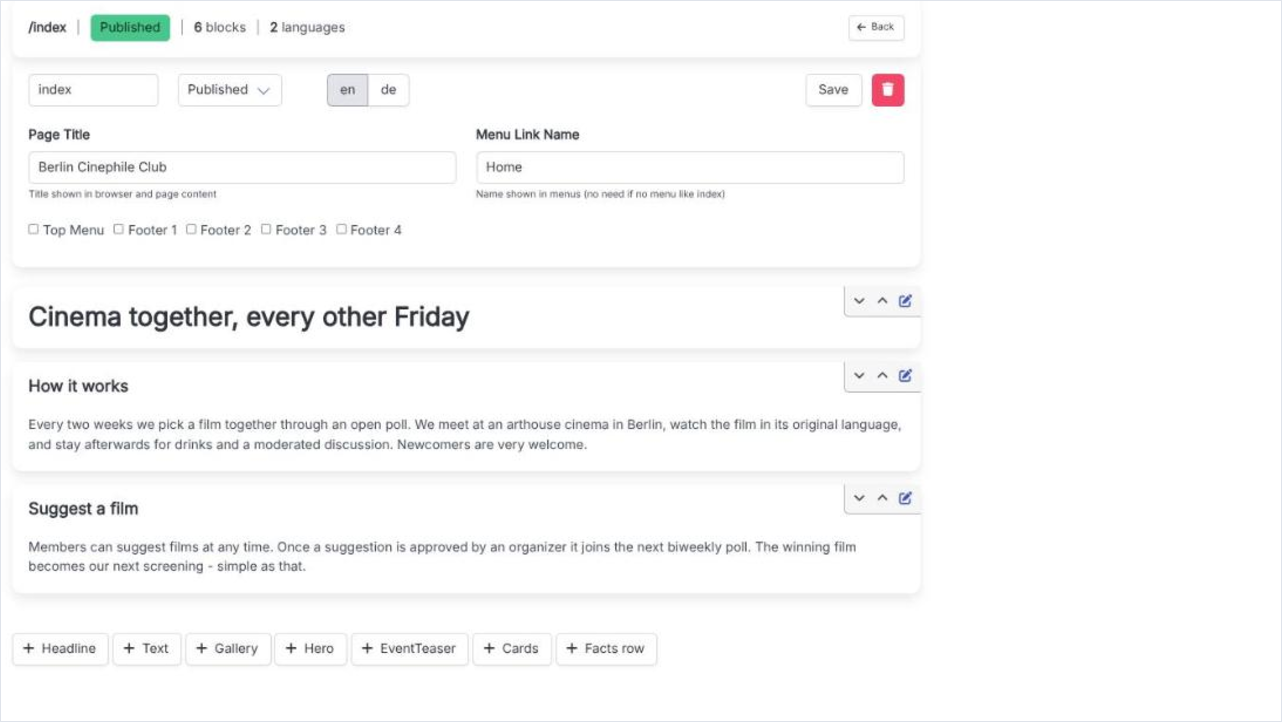
The block editor for a CMS page, showing several content blocks stacked with their move and delete controls.
The block editor. Blocks are stored per language - switch the language tab to write the same page again.

The block types

Headline
A heading on its own, for breaking a long page into sections.
Text
A rich-text paragraph block. The workhorse of most pages.
Gallery
Several images together as a grid.
Hero
A full-width banner, normally the first block on a landing page.
EventTeaser
Pulls upcoming events into the page, so a home page stays current without being edited.
Cards
Three cards side by side, each with a headline, sub-headline, text, an optional image and a button with its own link.
Facts row
Up to six short facts in a row, each with a label and a Font Awesome icon class such as fa fa-server.
Text with map
Text next to an OpenStreetMap map, for a "how to find us" page. You choose the side, the width and the height; the map only loads for visitors who allowed OpenStreetMap in the cookie banner.

Blocks are stored per language

Switching the language tab while editing gives you the same page in another language, not a translation of it - the blocks are separate. The translations column on the Pages list is how you find the pages that only exist in one.