Three settings decide what other people see of you: whether you are listed in the member directory, whether your name can be attached to photos, and who is allowed to reach you at all. They sit in one box on your settings page, and blocking handles the cases a toggle cannot.
Where the privacy settings live
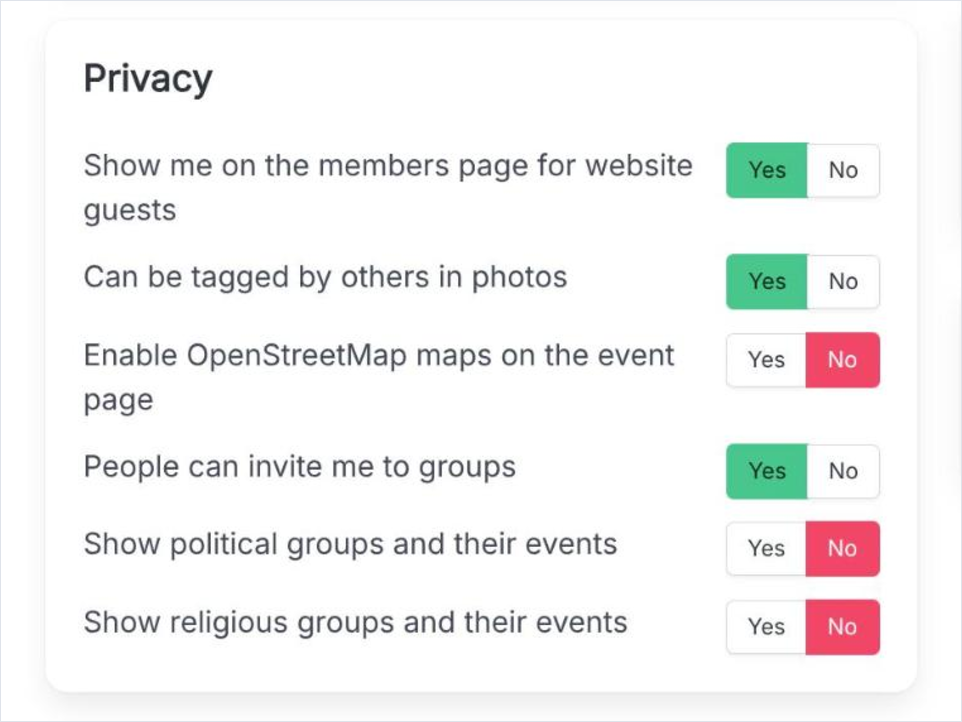
Open the menu under your name in the top bar and choose Settings & Privacy. The Privacy box is in the left column, under Settings. Every row is a Yes/No pair, and the choice saves the moment you press it - the active side turns green, and there is no save button and no confirmation step.
The Privacy box on the settings page. Each row is one setting, and each toggle takes effect immediately.
What each setting changes
Show me on the members page for website guests
Whether your account is listed in the member directory. With it off you are not listed - see the caution below about who that applies to. It does not delete your profile page or remove you from your groups.
Can be tagged by others in photos
Whether other members may attach your name to an image. With it off you cannot be picked when someone tags people in a photo.
Enable OpenStreetMap maps on the event page
Your consent to load map tiles from OpenStreetMap. With it off, no request goes to OpenStreetMap and the event page renders without the embedded map.
People can invite me to groups
Whether other members may send you an invitation to join their group. With it off you can still find and join groups yourself.
Show political groups and their events
A content filter rather than a privacy setting: groups that flagged themselves as political stay out of the listings you see unless you switch this on.
Show religious groups and their events
The same opt-in filter for groups that flagged themselves as religious.
Blocking one person
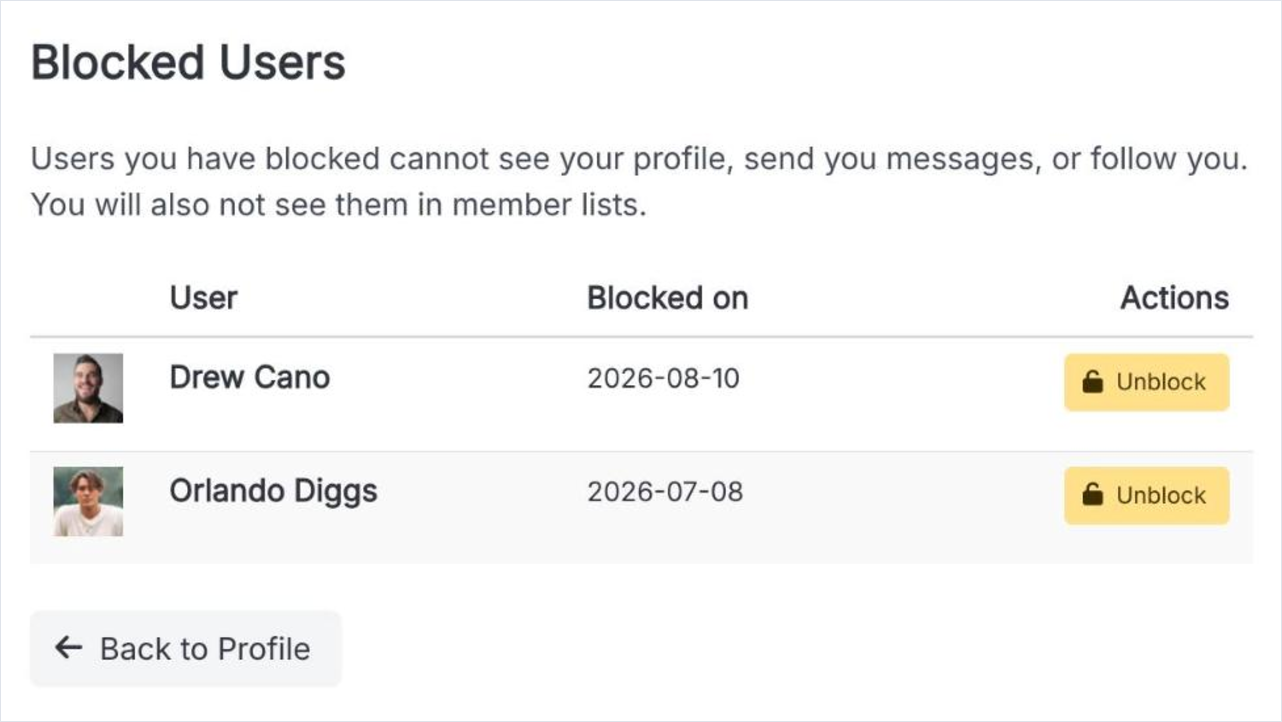
A toggle changes what everybody sees; blocking is aimed at one person. Someone you block cannot see your profile, send you messages or follow you, and they drop out of the member lists you see. The full list of people you have blocked is on the settings page under Blocked Users, and a block can be lifted from there at any time.
Blocked Users lists everyone you have blocked, with the date and one action to undo it.
The members-page setting is not guest-only
Despite its wording, turning off "Show me on the members page for website guests" removes you from the member directory for signed-in members too, not only for logged-out visitors.